ip
Bob User Guide
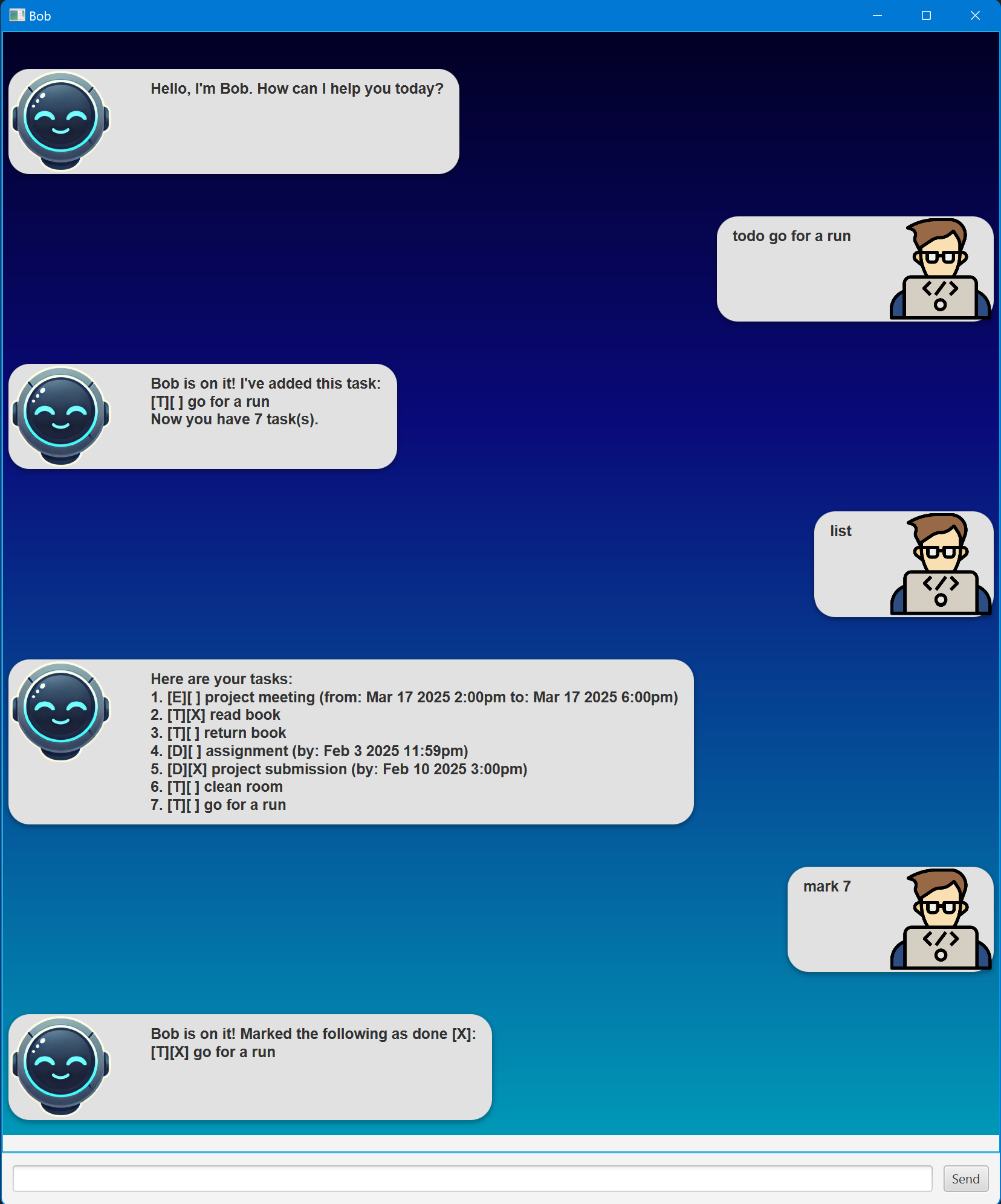
Bob is a simple task manager for tracking Todos, Deadlines, and Events. It helps you stay organized and manage your tasks efficiently with a command-line style interface. Here’s how you can use Bob:
Command List
| Command | Description |
|---|---|
list |
Lists all tasks. |
mark <task number> |
Marks a task as done. |
unmark <task number> |
Marks a task as not done. |
delete <task number(s)> |
Deletes one or more tasks by number. |
todo <task> |
Adds a Todo task. |
event <task> /from <date> <time> /to <date> <time> |
Adds an Event task. |
deadline <task> /by <date> <time> |
Adds a Deadline task. |
find <keyword> |
Finds tasks matching keyword. |
bye |
Exits the program. |
Features and Usage
1. List Existing Tasks
Usage: list
This command displays all your saved tasks in the following format:
Here are your tasks:

1. [E][ ] project meeting (from: Mar 17 2025 2:00pm to: Mar 17 2025 6:00pm)
2. [T][X] read book
3. [T][ ] return book
4. [D][ ] assignment (by: Feb 3 2025 11:59pm)
5. [D][X] project submission (by: Feb 10 2025 3:00pm)
6. [T][ ] clean room
7. [T][X] go for a run
2. Mark a Task as completed
Usage: mark <task number>
Example: mark 3
This will mark the specified task as completed. Tasks marked as done will display [X] in their status.
Bob is on it! Marked the following as done [X]:
[T][X] return book
3. Umark a Task
Usage: unmark <task number>
Example: unmark 4
This will revert the status of a completed task to not done ([ ]).
Bob is on it! Marked the following as undone [ ]
[D][ ] assignment (by: Feb 3 2025 11:59pm)
4. Delete task(s)
Usage: delete <task number 1> <task number 2> ...
Example: delete 3 5 6
You can delete one or multiple tasks by specifying their numbers. The task list will automatically adjust.
Bob is on it! Deleted the following task(s):[T][ ] go for a run
5. Add a Todo Task
Usage: todo <task>
Example: todo meet friend
Adds a Todo task to your list. Todos are simple tasks without deadlines or time constraints. Your tasks list will now include the new Todo:
Bob is on it! I've added this task:
[T][ ] meet friend
Now you have 10 task(s).
6. Add an Event Task
Usage: event <task> /from <date> <time> /to <date> <time>
Example: event project meeting /from 18/02/2025 1400 /to 18/02/2025 1600
Adds an Event to your task list, specifying a start and end date and time.
Here are your tasks:
Bob is on it! I've added this task: /to 18/02/2025 1600
[E][ ] project meeting (from: Feb 18 2025 2:00pm to: Feb 18 2025 4:00pm)
Now you have 11 task(s).
7. Add a Deadline Task
Usage: deadline <task> /by <date> <time>
Example: deadline assignment 3 /by 21/02/2025 2359
Adds a Deadline task to your list with a specific due date and time.
Bob is on it! I've added this task:
[D][ ] assignment 3 (by: Feb 21 2025 11:59pm)
Now you have 12 task(s).
8. Find task(s)
Usage: find <keyword>
Example: find assignment
Searches for tasks containing the given keyword and lists the results. Note only single keywords are allowed (for now).
Here are your tasks:

1. [D][ ] assignment (by: Feb 3 2025 11:59pm)
2. [D][ ] assignment 3 (by: Feb 21 2025 11:59pm)
9. Exit the Program
Usage: bye
Simply exits the program, shortly after giving a goodbye message. Alternatively, you can close the window normally in Windows/macOS/Linux by clicking the ‘X’ manually.
Note that user progress is saved after every command automatically. If there is an error, the program will inform the user immediately.
Thank you and goodbye